-
Detailed Description of the "Absence Request Use Case in Slack"
Video Walk Through of This Use Case
If you would like to see the "Leave Absence Request Use Case in Slack" in action, watch video below.
General Description
This use case demonstrates how to use ProcessMaker I/O in combination with Slack. Both software programs provide the tools to build effective processes while satisfying a variety of business needs. ProcessMaker I/O provides robust workflow functionality while allowing Slack users to work directly from the Slack bot interface. Slack users don't need to switch between multiple application windows.
Refer to the following topics regarding the description of this example:
Prerequisites
The following are prerequisites to use this example:
- A Slack workspace in which you or your Slack administrator can add an app to your workspace
- An XML-compliant text editor to edit the BPMN file used in this example
Process Scheme of This Example
Below is the process scheme:

Download BPMN file
Process Description
Below is a description of the process:
- A requester submits an absence request via a Slack Command and sets the parameters of this request using a "from date" and "to date" format. This is the beginning of the
Requesterprocess lane. - After the requester submits the absence request, the
Slack Action Receiverprocess lane sends the response to the approver in theApproverprocess lane. - The
Slack Action Receiverprocess lane sends the requester a message that his request is pending approval. - The approver receives the request via a specified Slack channel, makes a decision, and then clicks the corresponding button to approve or reject the absence request. The
Approverprocess lane ends. - The
Slack Action Receiverprocess lane sends the requester a message about the approver's decision. - After the requester receives the message from the
Slack Action Receiverprocess lane, theRequesterprocess lane ends.
Get Started with the Use Case
Refer to the following topics in this order to get started with the use case:
- Run a ProcessMaker I/O Environment and download the BPMN file
- Configure a Slack Bot
- Make revisions to the BPMN file
- Import the revised BPMN file to your ProcessMaker I/O Environment
- Process Execution
Run a ProcessMaker I/O Environment and Download the BPMN File
ProcessMaker I/O is an "always on" cloud service. In this document, an Environment refers to an installation of ProcessMaker I/O in a virtual machine or a container. This environment is created, run, and managed directly through the ProcessMaker I/O web management console.
If you don't have a ProcessMaker I/O Environment yet, do the following:
- Log on to your ProcessMaker I/O account. If you do not have a free ProcessMaker I/O account, please create one.
- Click Environments from the top menu.
- Click the Create Environment button.
If you already have a ProcessMaker I/O Environment, do the following:
- Log on to your ProcessMaker I/O account.
- Click Environments from the top menu, and then run a ProcessMaker I/O Environment. Ensure that your Environment is running. If your Environment is stopped, click the Run button.
- Click the Environment name to display your Environment's dashboard.
- Click the Info tab.
- From the API URL: field, copy the API URL link. This URL is your Environment's URL, and is required. Example:
https://MYENVIRONMENT.api.processmaker.io/api/v1, whereMYENVIRONMENTis your ProcessMaker I/O Environment name. Paste the URL into a text file to remember it for later.

- From the Examples: field, click the Example: Click to open link to display the ProcessMaker I/O Examples Portal.
- From the left menu, click the Slack - Leave Absence Request Process tab.
- Click the Slack BPMN file link to download the BPMN file to your computer. You will use this BPMN file for this example.
Configure a Slack Bot
Refer to the following topics to configure a Slack bot:
- Create a Slack app
- Enable interactive messages for your Slack app
- Create a Slack Command for your app
- Activate the Slack Bot
- Install your app to your Slack workspace
- Test your app
Create a Slack App
Follow these steps to create your Slack app with which your ProcessMaker I/O Environment will interact:
- Ensure you are signed into your Slack workspace.
- Go to the Slack API, and then click on the Create New App button. The Create a Slack App screen displays.

- In the App Name field, enter the name of your Slack app.
- From the Development Slack Workspace drop-down menu, select the workspace from which your Slack app is to function.
- Click the Create App button.
Enable Interactive Messages for Your Slack App
Follow these steps to enable interactive messages for your Slack app:
- After creating your app, click Interactive Components from the Basic Information page.
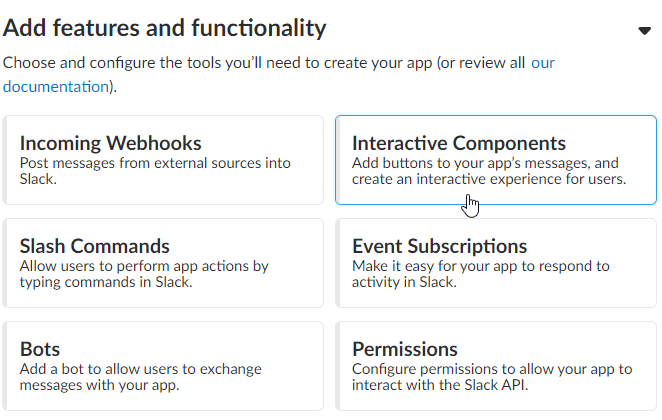
- Click the Enable Interactive Components button. The Interactive Components screen displays.

- In the Request URL field, paste your ProcessMaker I/O Environment link from your text editor. Example: https://your-environment-url/api/v1/processes/Slack%20Action%20Receiver/events/Slack%20Response%20Received/webhook.
- Click the Enable Interactive Components button.
Create a Slack Command for Your App
Follow these steps to create a Slack Command (also called a "slash" command) for your Slack app:
Note: These steps are important to create interactive buttons in Slack messages.
- Under Features in the left menu, click the Slash Commands page for your app.
- Click the Create New Command button. The Create New Command screen displays.

- In the Command field, enter a name for the Slack command. Slack commands must start with a
/, contain no spaces, and be lower-cased. Example:/absence_request. - In the Request URL field, paste your ProcessMaker I/O Environment's API URL from your text editor. This value can also be copied from the API URL: field in your Environment. Example: https://your-environment-url/api/v1/processes/Requester/events/Time%20Off%20Request/webhook.
- In the Short Description field, enter a description for the Slack Command.
- In the Usage Hint field, define usage parameters for your Slack Command. Example:
[fromDate m/d/Y] [toDate m/d/Y]to represent the beginning and end of the requested absence. - Click the Save button.
Activate the Slack Bot
Follow these steps to activate the Slack bot:
- Under Settings in the left menu, click Bot Users for your app. The Bot User page displays.
- Click the Add a Bot User button. Fields to configure a bot display.

- In the Default username field, enter the default username. Usernames must be lower-cased, cannot be longer than 21 characters or contain spaces, and can only contain letters, numbers, periods, hyphens, and underscores. Example:
@Absence-Request. - Click the Add Bot User button.
Install Your App to Your Slack Workspace
Install your app to your Slack workspace. Your Slack workspace administrator may require permission to install an app to the workspace. Refer to one of the following topics depending on whether you must request permission:
Install Your App to the Workspace If Permission Is Not Required
Follow these steps to install your Slack app to your workspace if you do not need to request permission to do so:
- Under Settings in the left menu, click Install App for your app. The Install App to Your Team screen displays.
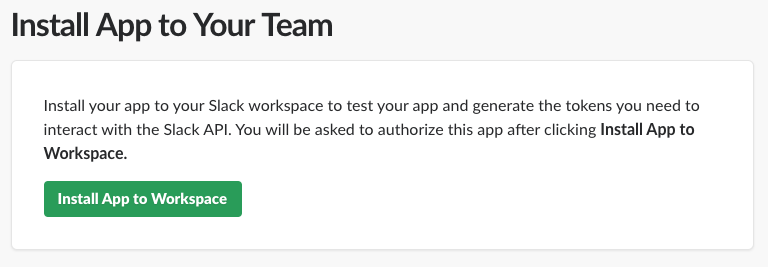
- Click the Install App to Workspace button.
- From the Post to drop-down menu, select from which channel to install your app.
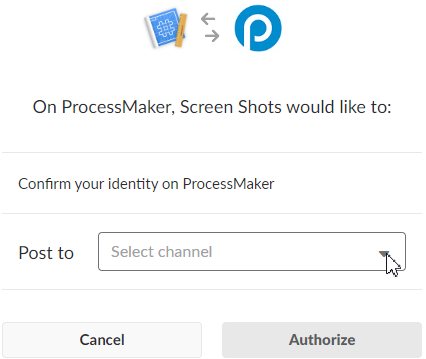
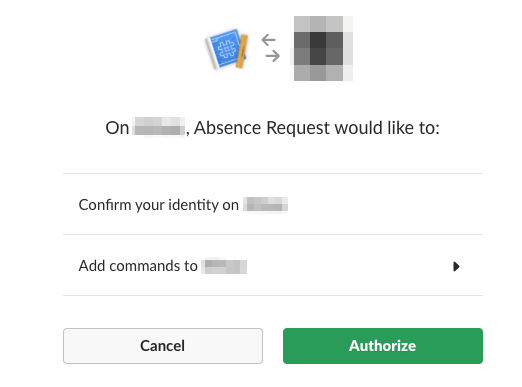
- Click the Authorize button on the following page.
Install Your App to the Workspace If Permission Is Required
Follow these steps to install your Slack app to your workspace if you must request permission to do so:
- Under Settings in the left menu, click Install App for your app. The Install App to Your Team screen displays.

- Click the Request Approval button. The Request to install {your app name} screen displays.
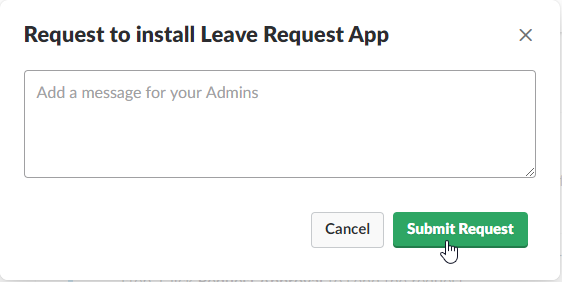
- Request your Slack workspace administrator permission to install your app to the workspace.
- Click the Submit Request button.
- After your app has been approved for installation, go to Basic Information (under Settings in the left menu), and then expand the Install your app to your workspace section.
- Click the Install App to Workspace button.
- From the Post to drop-down menu, select from which channel to install your app.
- Click the Authorize button on the following page.
Test Your App
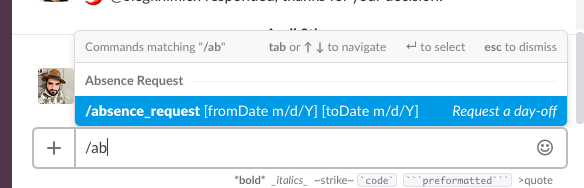
Go to Slack and then run the Slack Command you created.
Make Revisions to the BPMN File
Refer to the following topics how to make revisions to the slack.bpmn file that you downloaded from the ProcessMaker I/O Examples Portal:
- Insert the Slack Bot Token for Your Slack Bot into the BPMN file
- Specify the Slack channel name for approvers
Insert the Slack Bot Token for Your Slack Bot into the BPMN File
After your Slack bot has been created and installed to your team workspace, you must revise the "Initiate SlackBot" service task in the slack.bpmn file to include the Slack bot token for your Slack bot. This allows your ProcessMaker I/O Environment to interact with your Slack bot.
Follow these steps to get the Slack bot token value, and then revise the BPMN file:
- Under Features in the left menu, click OAuth & Permissions for your app. The OAuth & Permissions page displays.
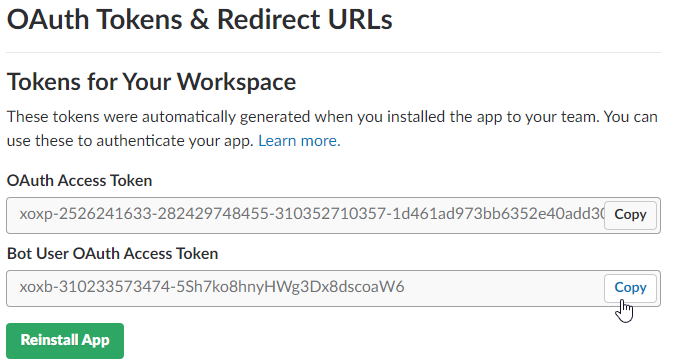
- In the OAuth Tokens & Redirect URLs section, click Copy in the Bot User OAuth Access Token field to copy the Slack bot token value to your Clipboard.
- Open the
slack.bpmnfile in any XML-compliant text editor. - In the "Initiate SlackBot" service task, paste the bot token into the DataModel 'bot_token' variable. Bot tokens start with
xoxb. Example:$aData['bot_token']="xoxb-161650023927-8rz0xMGgrwsgbGUJj5lMaWiH';". - Save the
slack.bpmnfile.
Specify the Slack Channel Name for Approvers
Specify the name of the Slack channel to send leave of absence requests. The approver for the leave of absence requests must be a member of this Slack channel. Follow these steps to configure the channel name:
- Open the
slack.bpmnfile in any XML-compliant text editor if the file is not already open. - In the "Initiate SlackBot" service task, within the DataModel
channel_namevariable, specify the Slack channel name to send leave of absence requests. Example:$aData['channel_name']='#testprocess';. Your channel can be private. If the channel is private, the bot user must be invited/added to the channel. Create the appropriate permissions in the channel in advance. - Save and close the
slack.bpmnfile.
Import the Revised BPMN File to Your ProcessMaker I/O Environment
Follow these steps to import the revised slack.bpmn file into your ProcessMaker I/O Environment:
- Log on to your ProcessMaker I/O account, and then access your running Environment if you have not done so. For information how to do so, go here.
- Click the Environment name to display your Environment's dashboard.
- Click the Processes tab.
- Click the Upload Process Scheme button.
- Click the Choose File button.
- Click the Import button to upload the revised BPMN file from your computer to your Environment.
Process Execution
After completing all these steps, you're ready to use this example. Refer to the following topics regarding process execution:
Initiate the Process
To initiate a case of this process, follow these steps:
- Log on to the Slack workspace to which the Slack app is installed.
- From any Slack channel, perform the "leave of absence requester" role: Use the Slack Command you configured when you created the app. After you submit the request, the Slack app notifies you that the request is under review.
Complete the Process
To complete a case of the process, follow these steps:
-
Perform the "Approver" role: Go to the channel configured to receive leave of absence requests.
-
Use one of the following buttons to respond to the leave of absence request:
- Approve: Click the Approve button to grant the request.
- Reject: Click the Reject button to reject the request.
-
Return to the "leave of absence requester" role: Receive the response from the "approver role" regarding the leave request.
View and Delete Processes
To view cases (or instances) run against a process, follow these steps:
- Log on to your ProcessMaker I/O account, and then access the Environment running the process.
- Click the Processes tab. If the process has cases against it, an arrow displays to the left of the process name.
- Click the arrow to display information about that process's cases.
To delete a process (and all cases for that process), click the Delete button for that process. To delete all processes for this example, delete Approver, Requester, and Slack Action Receiver.
Detailed Description of the "Absence Request Use Case in Slack"
Refer to the following topics regarding a detailed description of this use case:
Process Lane Descriptions
Each process lane in this process is briefly described below.
| Process Lane | Description |
|---|---|
| Requester | The process begins when a user requests a leave of absence. |
| Approver | A user or group of users who have permission to approve a leave of absence. |
| Slack Action Receiver | The technical process for receiving and processing button responses from Slack. |
Process Task Descriptions
Tasks in this process are described below in the order they appear in the process scheme from left to right, top to bottom.
| Task | Type | Process Lane | Connector | Description |
|---|---|---|---|---|
| Time Off Request | start event | Requester | Starts the Requester process. | |
| Initiate SlackBot | script task | Requester | This technical task runs a script and configures the Slack application parameters, such as AppNumber, Dates, Slack bot token and Slack channel name. | |
| Send Time Off Request | service task | Requester | APIConnector](https://www.processmaker.io/connectors-list/#classes/App_Models_Process_Processor_Connectors_Slack_ApiConnector.xhtml) | This is where the user requests the time off. |
| Slack Request Sent | intermediate message event | Requester | This message event sends the request for approval. | |
| Approve Request | start message event | Approver | This start event is initiated by the Slack Request Sent message event and launches the approver process. | |
| Slack Response Received | start event | Slack Action | This event initiates the Slack API when the "Approve" or "Reject" button is clicked. | |
| Parse Payload | script task | Slack Action | This script decodes JSON and prepares the data to send in the Slack API response to the approver. | |
| Get Slack Callback | intermediate Message event | Slack Action | CorrelationKeys | Gets the callback and sends the Slack response to the appropriate process instance. |
| Response Confirmation | service task | Slack Action | SendMessageConnector](https://www.processmaker.io/connectors-list/#classes/App_Models_Process_Processor_Connectors_Slack_SendMessageConnector.xhtml) | This connector sends the Slack webhook. |
| Get Slack Response | intermediate message event | Approver | When the approver gets the response from the Slack webhook, the approver can continue with the approval process. | |
| Send Approval/Send Decline | service task | Approver | APIConnector](https://www.processmaker.io/connectors-list/#classes/App_Models_Process_Processor_Connectors_Slack_ApiConnector.xhtml) | This is where the approver makes a decision. |
| Send Confirmation Request Accepted | service task | Requester | SendMessageConnector](https://www.processmaker.io/connectors-list/#classes/App_Models_Process_Processor_Connectors_Slack_SendMessageConnector.xhtml) | This is where the requester gets a message notifying them that their request is being reviewed. |
| Decision Made | intermediate message event | Requester | CorrelationKeys | This message event sends a notification to the requester with the approver's decision. |
Forms
There are no forms in this process because everything is accessed through Slack. We only need to define the fields that house data for each case.
| Field ID | Field Label | Enabled | Data Type | Field Description |
|---|---|---|---|---|
| RequesterUsername | Requester Username | N | String | Requester's username. |
| RequestorFullname | Requester Full Name | N | String | Requester's full name. |
| RequestDate | Request Date | N | Datetime | Date of the request. |
| TimeOffDateStart | Time Off Start | Y | Datetime | Date the time off will start. |
| TimeOffDateEnd | Time Off End | Y | Datetime | Date the time off will end. |
| ReasonForTimeOff | Reason For Taking Time Off | Y | String | Reason for the time off request. |
| Status | Status | N | String | Current status of the request. Options are Pending Approval, Approved, and Rejected |
Messages
All messages take place in Slack. There are no email messages. Therefore, all messages are in the form of formatted webhook messages in either a channel or a private message between the ProcessMaker bot and the user.
| Message Title | Task | Location | Content |
|---|---|---|---|
| Notification to approver | Approve Time Off | Channel | Hello UserFullname, A new request for time off has been initiated by RequestorFullname. RequestorFullname has requested to take time off from TimeOffDateStart until TimeOffDateEnd. That would mean a total of TotalTimeOff days off. Would you like to Approve or Reject this request? Note: To approve or reject the request, please click on the appropriate text above, or you may type either "/pm-route 253 approve" to approve the request, or "/pm-route 253 reject" to reject the request. |
| Approval notification to requestor | Approve Time Off | Private Message | Hello RequestorFullname, We just wanted to let you know that you have the best boss in the world! Your request for time off, from TimeOffDateStart until TimeOffDateEnd has been approved! For your records, the case number is AppNumber. Enjoy your time off! |
| Rejection notification to requestor | Approve Time Off | Private Message | Hello RequestorFullname, We regret to inform you that you have a bad boss! Your request for time off has been rejected. For your records, the case number is AppNumber. Better luck next time! |
| New case note | All | Private Message | Hello UserFullname, We just wanted to let you know that there has been a new case note added to case number AppNumber. See below for the full note. "CaseNote_Content" |